

Use website DNI, connect call reports to Google Ads and your Google Business Profile, then tie calls to booked jobs. City Web Company can handle setup.
8 Week Playbook for Google Business Profile Posts for Local Services
Yes, use Google Business Profile posts, but treat them as conversion tools, not a social feed. Every post should focus on one goal: a single call to action pointing to a landing page consistent with the post’s message, ideally tagged with tracking parameters for performance measurement. This guide covers the post types, the exact publishing steps, measurement templates, and the policy rules that trip up most local businesses, so you can run posts like a channel instead of a chore.
TL;DR:
- Posts should be focused, with a single clear call-to-action linking to a landing page that matches the post’s message and offer.
- Use Offer and Event posts for time-sensitive promotions, which automatically disappear after their end date, ensuring content stays current.
- Tag all post URLs with UTMs to accurately track traffic and conversions, and align landing pages directly with the post content for maximum effectiveness.
- Manage posts via API or third-party tools when scaling beyond a few locations to ensure consistent, localized messaging and avoid errors.
- Maintain a regular posting cadence of one to two times weekly, prioritizing high-quality content that supports ongoing local SEO efforts and profile activity.
Table of Contents
Table of Contents
- What Are the Types of Google Business Profile Posts?
- How Do You Create and Publish a Google Business Profile Post?
- Best Practices and Content Ideas That Actually Drive Clicks
- Should You Schedule or Automate Your Posting?
- How Do You Track ROI From Google Business Profile Posts?
- How Do Posts Affect Local Search Visibility?
- Why Do Google Business Profile Posts Get Rejected?
- Some agencies follow a workflow built around one principle: every post functions as a small sales asset, not a status update. That means a documented editorial calendar, a landing page built to match each post’s specific offer, and a UTM naming convention applied consistently from day one, not bolted on after six months of unattributed traffic.
- When Should You Prioritize Posts Over Other Channels?
- Get GBP Posts, Tracking, and Reporting Handled for You
- Sources
- FAQ
What Are the Types of Google Business Profile Posts?
Google Business Profile supports three post types: Update, Offer, and Event. Each one has different required fields, and picking the wrong type for your goal is the most common reason posts underperform.
An Update post is the general-purpose format. It takes a photo or video, a description of up to 1,500 characters (though the visible preview is much shorter), and an optional action button linking to a URL. There’s no start or end date, so it behaves like a standing announcement rather than a time-boxed promotion.
An Offer post requires a title, start and end dates, and supports an optional coupon code, terms and conditions link, and redemption link. This is the format for a discount, a seasonal deal, or a limited-time bundle.
An Event post also requires a title plus start and end dates and times, and works best when the linked landing page carries Schema, which helps Google understand the event details well enough to potentially surface them in rich results. All three post types support Google’s action buttons, including “Book,” “Order online,” “Buy,” “Learn more,” “Sign up,” and “Call now,” and each links to a URL you control, which is where your CTA and UTM strategy actually lives, according to Google’s own documentation.
Where a post shows up depends on device and status. On mobile, posts appear in the Updates or Overview tab of your profile. On desktop, they show under a “From the owner” section. Active posts also populate a scrolling Posts carousel directly in Search and Maps results, though visibility isn’t guaranteed. According to Google’s help documentation on post status, a post can sit in three states: live, pending review, or not approved, and only live posts show publicly.
A few structural details change what you should expect from each format:
- Update posts have no expiration and stay visible until newer posts push them down the queue.
- Offer and Event posts disappear automatically once their end date passes, which means an expired offer stops showing even if you never delete it.
- Posts are generally ordered by recency, so a steady cadence keeps your most relevant content near the top of the carousel.
- Only the action button URL is clickable; the description text does not link anywhere, so your CTA has to carry the entire conversion path.
How Do You Create and Publish a Google Business Profile Post?
Publishing a post takes about five minutes once you know the field order. Here’s the sequence for each post type through the standard dashboard, plus notes on the enterprise workflow agencies use for chains and multi-location clients.
- Sign in to your Business Profile manager at business.google.com or open the Google Business Profile app, then select the location you want to post from.
- Click “Add update” (sometimes labeled “Create post”) and choose Update, Offer, or Event from the type selector.
- Upload a photo or short video. Google recommends high-resolution images, ideally at least 720px wide, in JPG or PNG format.
- Fill in the required text fields. For Offers and Events, this means a title and start/end dates; for Updates, it’s just the description.
- Add the action button. Select the button type that matches your goal (“Book,” “Order online,” “Learn more,” etc.) and paste in your UTM-tagged landing page URL.
- Set scheduling if needed. Use the “Schedule this post” option to set a future publish date, and the “Repeats” dropdown to make a post recurring, useful for a weekly special that runs the same offer every Friday.
- Preview and publish. Google reviews most posts within minutes, but some enter a pending state for manual review, particularly in regulated categories.
- Check status after publishing. Go back to the Posts section to confirm the post shows as live; if it reads “not approved,” you’ll need to fix the flagged issue and resubmit.
For businesses managing more than a handful of locations, the manual dashboard doesn’t scale. Google’s own Business Profile documentation notes that chains and agencies can use API access or third-party management tools to push posts across dozens or hundreds of profiles at once, an approach sometimes referred to by its enterprise console name, NMX, inside Google’s partner ecosystem. This matters because per-location governance, like localized landing pages and per-location UTM conventions, prevents the classic multi-location mistake: fifty posts all sending traffic to one generic homepage, which makes attribution meaningless.
Editing an existing post is straightforward: open the post, click the pencil icon, make your change, and resave. Deleting works the same way through the three-dot menu. There is no “unpublish and republish later” option, so if you want a post to reappear, you’ll need to create a new one.
Pro Tip: If a post shows “pending” for more than 24 hours, don’t resubmit it immediately. Google’s review queue sometimes stalls on posts with links to newly registered domains or URLs with tracking parameters that look unfamiliar. Wait a full business day, then check whether the landing page itself might be the trigger.
Best Practices and Content Ideas That Actually Drive Clicks
The single biggest mistake local businesses make with Google Business Profile posts is writing them like Instagram captions. Google Product Experts are explicit on this point: posts should function as conversion drivers, built around one action, not as a running commentary feed. Before you write a single word, decide the one thing you want the reader to do: call, book, buy, or sign up. Then build the entire post around that action.
Match the landing page to the post, every time. If your post promotes a $50 HVAC tune-up, the button should not land on your generic homepage. It should land on a page that repeats the same offer, the same price, and the same expiration date the post promised. Mismatched expectations between post copy and landing page are a silent conversion killer that never shows up in your GBP dashboard, only in your bounce rate.
Image and video guidance that actually matters:
- Use real photos of your team, location, or work, not stock imagery. Generic stock photos get scrolled past.
- Keep video under 30 seconds; GBP truncates longer clips in the preview anyway.
- Add alt-text style context in your description for accessibility, since not every viewer sees images render.
- Avoid text-heavy image overlays. Google’s carousel crops images unpredictably across devices, and small text often gets cut off.
CTA and microcopy tips. Front-load the benefit in the first ten words of your description, since mobile previews truncate aggressively. “Book your fall furnace inspection before the first freeze” beats “We are pleased to announce our fall promotion” every time. Choose the action button that matches actual user intent: “Call now” for emergency services like plumbing or pest control, “Book” for appointment-based businesses like med spas, and “Order online” for anything with e-commerce.
A rotating content playbook keeps your posting cadence sustainable instead of a scramble every Monday morning:
- Offers: seasonal discounts, first-time customer deals, bundle pricing.
- Events: open houses, community sponsorships, in-store demos.
- Social proof: a strong review quoted directly, paired with a photo of the completed job.
- FAQs: answer the question you get asked most on the phone, restated as a post.
- Tips: a maintenance tip relevant to your trade (winterizing pipes, HVAC filter schedules).
- Seasonal relevance: tie posts to weather events, holidays, or local happenings.
On cadence, SEMrush’s guidance on Google Business Profile posts points to consistency as the real driver of long-term value, not volume. A realistic target for most local businesses is to post regularly, aiming for a consistent cadence that keeps the content fresh but manageable. That’s frequent enough to keep the carousel fresh without draining the marketing calendar dry by Wednesday. Med spas and restaurants running frequent promotions can push to three per week; a plumber or HVAC company with steadier, less seasonal offers can hold at one.
Pro Tip: Set a calendar reminder to audit expired Offer and Event posts monthly. They vanish from your profile automatically once the end date passes, but if you never planned a replacement, your Posts carousel goes quiet, and a quiet carousel reads to customers as an inactive business.
Should You Schedule or Automate Your Posting?
Schedule inside the native dashboard if you manage one or two locations; move to a third-party tool or API access once you’re coordinating five or more, or once posting becomes someone’s part-time job instead of a five-minute task.
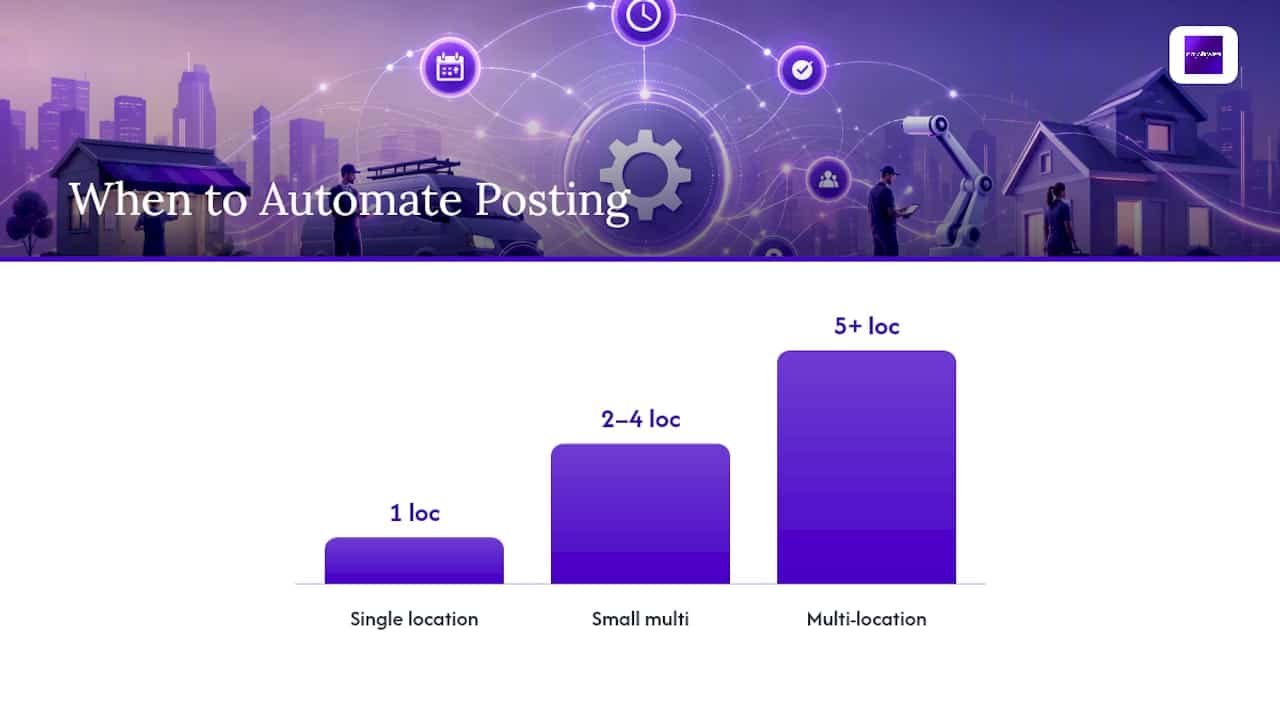
The built-in scheduler covers most single-location needs. When creating a post, the “Schedule this post” option lets you set a future publish date and time, and the “Repeats” dropdown handles recurring content like a weekly special that runs every Friday without you manually recreating it. This works well for businesses posting once or twice weekly across one profile.
The trade-offs shift once you’re managing volume or multiple locations:
- Native scheduling gives you full manual control and zero extra cost, but it doesn’t scale past a handful of profiles without becoming a repetitive chore.
- API access or third-party scheduling tools let agencies and multi-location businesses push a templated post across dozens of profiles simultaneously, with localized fields swapped in per location.
- Brand-safety checks matter more at scale. A typo or broken link in a single manual post is a minor annoyance; the same error pushed across 40 locations via API is a real problem, so bulk posting needs a review step before publishing, not after.
- Per-location UTM conventions become mandatory at scale. Without a consistent naming pattern for campaign_content across locations, you can’t tell which store’s post drove which conversion, and your reporting collapses into noise.
Tools built for marketing reporting, like Gainable’s marketing analytics apps, can help pull post performance data alongside other channel metrics once you’re tracking volume across multiple profiles. For most single-location owners, though, the native scheduler paired with a monthly content calendar is enough. Automation earns its complexity only when the manual version is genuinely eating hours you don’t have.
How Do You Track ROI From Google Business Profile Posts?
Every post button should carry a UTM-tagged URL, because without one, any traffic or conversion from a post gets lumped into generic “organic” or “direct” traffic in your analytics, and you’ll never know which posts are pulling their weight. This is the single fix that turns posts from a guess into a measured channel, and it’s the practice Search Engine Land’s UTM guidance for Google Business Profile treats as non-negotiable for any business serious about local search performance.
The structure is simple: campaign_source identifies the platform, campaign_medium identifies the channel type, campaign_name identifies the specific initiative, and campaign_content identifies the exact post or creative variant. That last parameter is what lets you split-test one Offer post’s phrasing against another’s.
| Post type | Example UTM string appended to the landing page URL |
|---|---|
| Update | ?utm_source=google&utm_medium=gbp&utm_campaign=weekly_update&utm_content=maintenance_tip_oct |
| Offer | ?utm_source=google&utm_medium=gbp&utm_campaign=fall_promo&utm_content=furnace_tuneup_50 |
| Event | ?utm_source=google&utm_medium=gbp&utm_campaign=open_house&utm_content=nov_showroom_event |
Once the links are tagged, set up GA4 to capture the sessions. Create a dedicated exploration or segment filtered by medium=gbp, and connect that traffic to your existing conversion events, whether that’s a form submission, a scheduled appointment, or an online purchase. If phone calls are your primary conversion, use a call-tracking number specifically on GBP-driven landing pages, separate from the number on your homepage, so inbound calls can be attributed back to the post that generated them.
Reporting cadence should match your posting cadence loosely: a monthly review is usually enough to catch trends without overreacting to a single slow week. Watch three numbers closely: sessions from the gbp medium, the conversion rate on those sessions compared to your site average, and, if you’re running paid amplification behind any post, cost per lead. A post that generates traffic but converts at half your site average usually means the landing page, not the post, needs work.
Pro Tip: Keep one master spreadsheet mapping every campaign_content value to the actual post it represents. Six months in, “furnace_tuneup_50” is instantly clear, but a UTM string alone rarely is once you’ve published 80 posts across a year.
How Do Posts Affect Local Search Visibility?
Posts are not a primary local ranking factor, and treating them as one leads to disappointment. Google’s own guidance on local ranking centers on three pillars: relevance, distance, and prominence. Posts touch prominence indirectly, mainly by signaling that a business is active and by supporting the broader engagement signals Google already weighs, like reviews and profile completeness.
The honest expectation split looks like this: posts drive a measurable, direct lift in clicks and conversions when the CTA and landing page are aligned, and that’s where most of the ROI shows up. Their contribution to organic ranking is real but indirect and harder to isolate, since Google doesn’t publish a clean weighting for “recency of posts” the way it does for something like proximity to the searcher.
That means posts work best as one piece of a fuller profile, not a standalone fix. To get the most out of them:
- Keep your business categories, hours, and service list current, since an outdated profile undercuts even great posts.
- Upload photos regularly outside of posts too. Photo count and freshness are separate signals Google’s local algorithm considers.
- Respond to reviews consistently. A profile with active review responses and active posting reads as a genuinely maintained business, which supports the broader case for prioritizing local SEO as a compounding effort rather than a one-time setup.
- Treat posts as a supplement to, not a replacement for, core local SEO practices like citation consistency and service-page optimization.
A profile that posts weekly but has three-year-old photos and unanswered negative reviews will still underperform a competitor with a sparser posting habit but a fully maintained profile. Posts amplify a strong profile; they don’t fix a neglected one.
Why Do Google Business Profile Posts Get Rejected?
Most rejections come down to a handful of predictable causes, and knowing them upfront saves you a resubmission cycle. Google’s policy guidance is explicit about what gets flagged, and regulated industries face tighter scrutiny than a typical home services business.
Posts must stay professional and family-friendly, and links must point to trustworthy, functioning destinations. Google specifically restricts or reviews more closely posts from regulated categories, including anything touching healthcare claims, legal services, financial products, or alcohol, according to Google’s own post policy documentation. A med spa promoting a specific treatment result, for instance, needs to be careful about implying guaranteed outcomes.
Common rejection triggers include:
- Broken links, redirect chains, or URLs pointing to a domain that doesn’t match the business.
- Excessive capitalization, exclamation points, or promotional language that reads as spam.
- Content unrelated to the business itself, like unrelated third-party promotions.
- Missing required fields for Offer or Event posts, particularly dates.
- Duplicate content posted too close together, which can trigger automated spam filters.
When a post lands in “not approved” status, the fix is usually mechanical rather than mysterious: check the URL loads correctly, remove excessive formatting, confirm dates are filled in for time-bound posts, and resubmit. If a post has been “pending” for more than a day with no explanation, the landing page URL is the first thing worth testing in an incognito browser, since a redirect or tracking parameter Google’s crawler doesn’t recognize is a frequent silent cause.
Some agencies follow a workflow built around one principle: every post functions as a small sales asset, not a status update. That means a documented editorial calendar, a landing page built to match each post’s specific offer, and a UTM naming convention applied consistently from day one, not bolted on after six months of unattributed traffic.
A typical eight-week calendar for a home services client looks like this:
- Weeks 1 to 2: Foundational Update posts covering core services, paired with team and job-site photography.
- Weeks 3 to 4: One Offer post introducing a seasonal promotion, plus a customer review highlight.
- Weeks 5 to 6: An Event post for a community sponsorship or open house, plus an FAQ-style Update.
- Weeks 7 to 8: A second Offer tied to a seasonal shift, plus a maintenance-tip Update.
Some digital marketing firms report post-driven leads back to clients through dashboards that isolate GBP-sourced sessions and conversions from other traffic, using disciplined UTM tagging.
| Deliverable | What it tells the client |
|---|---|
| Weekly posting cadence | Posts published on schedule with matched landing pages |
| UTM-tagged CTAs | Which specific post drove which session or lead |
| Monthly conversion report | Sessions, conversion rate, and lead volume by post type |
| Profile completeness audit | Photos, categories, and services kept current alongside posts |
For businesses that want this run for them rather than managed in-house, City Web Company’s Google Business Profile optimization services apply this exact framework across home services, med spas, legal, HVAC, and other local service categories.
When Should You Prioritize Posts Over Other Channels?
Posts earn priority when your profile is already complete, your reviews are current, and you need a low-cost way to promote something time-sensitive, like a seasonal offer or a local event, without waiting on a paid campaign to launch. They’re weaker as a first move if your profile itself is thin: missing categories, few photos, few reviews, because posts amplify an existing signal rather than create one from nothing.
If you have a specific, time-bound offer to promote and no budget for paid ads this month, a well-tagged Offer post is close to free and measurable. If your GBP-sourced sessions have shown flat or declining conversion rates for two straight months despite steady posting, that’s a signal to shift effort toward paid search or your landing pages instead of posting more.
Watch the data, not the calendar. A business posting weekly with sessions but near-zero conversions has a landing page problem, not a posting frequency problem, and no amount of additional posts will fix that gap.
— Matt
Get GBP Posts, Tracking, and Reporting Handled for You
Professional services can provide audits of current profiles, documented posting schedules matched to landing pages, proper UTM tagging from the start, and monthly reports showing post performance analytics such as calls, bookings, or sales.
A typical engagement starts with a full profile audit covering categories, photos, services, and review response gaps, since posts alone can’t fix a profile with structural holes. From there, providers build posting calendars tailored to service types and seasonal patterns, establish per-post UTM conventions to trace button clicks to results, and deliver monthly reporting that includes sessions, conversion rates, and lead volume by post type.
If you’re ready to stop treating your Business Profile as a set-and-forget listing, start with City Web Company’s Google Business Profile optimization services and get a plan built around your actual service area and goals.
Sources
For readers who want to verify details or go deeper on any section above, these are the primary sources worth bookmarking:
- Create & manage posts on your Business Profile – Google Business Profile Help
- What Are Google Business Profile Posts? – SEMrush
FAQ
What should I post on my Google Business Profile?
Post content tied to a specific action: seasonal offers, upcoming events, customer reviews, FAQs, and maintenance or service tips, each with one clear CTA linking to a matching landing page.
How do I see Google Business Profile posts?
Open your Business Profile manager or the Google Business Profile app and go to the Posts section, where you can view live, pending, and not-approved posts by status.
How do Google Business Profile posts work?
You create a post through the dashboard or app, select Update, Offer, or Event, add media and text, attach an action button URL, and Google reviews it before it appears in Search, Maps, and your profile’s Posts carousel.
What are the rules for a Google Business Profile post?
Posts must stay professional and family-friendly, link only to trustworthy and functioning URLs, and comply with tighter restrictions in regulated categories like healthcare, legal, and financial services; violating these leads to a not-approved status.
How often should a local business post on Google Business Profile?
One to two posts per week is a sustainable baseline for most local service businesses, with more frequent posting reserved for businesses running frequent promotions, like med spas or restaurants.
Recommended
These articles were popular with other readers too: