Use website DNI, connect call reports to Google Ads and your Google Business Profile, then tie calls to booked jobs. City Web Company can handle setup.
Google Business Profile Photos: 3 per Type, Local Service Checklist
Google Business Profile photos must be JPG or PNG files between 10 KB and 5 MB, with a recommended resolution of 720 x 720 pixels and a 250 x 250 minimum. They only show publicly once your profile is verified. Your first move: verify the profile if you haven’t, then upload clear exterior and interior shots that match what customers will really see.
TL;DR:
- Build a gallery with three photos per core category, showing varied exterior views, interiors as customers see them, and representative products or real work.
- For multiple locations, use Google’s bulk upload tools when managing 10 or more locations; developers can instead automate uploads through the API.
- Google may leave uploads pending during review, so check their status before trying again; duplicate submissions can slow the process.
- Refresh photos monthly and after visible changes; pair seasonal offers or finished jobs with posts in mobile Updates and Overview tabs.
- Check customer photos regularly, reply or add accurate owner images to correct misleading ones, and report inappropriate content through Maps or Search.
Table of Contents
Table of Contents
- What are the official Google Business Profile photo requirements?
- Which photos should you add, and how many?
- How do you add photos to your Business Profile?
- How do you shoot and publish photos that earn clicks?
- What should you do about customer photos?
- Our view: a checklist beats a one-time photo dump
- Need help putting this into practice?
- FAQ
- Sources
What are the official Google Business Profile photo requirements?
Google publishes the technical rules in its Business Profile help center. Here is what your images need to meet:
- Format: JPG or PNG only.
- File size: 10 KB to 5 MB.
- Resolution: 720 x 720 pixels recommended, 250 x 250 pixels minimum.
- Quality: in focus, well lit, and honest about what the place looks like.
- Authenticity: skip heavy filters and AI-altered images, because Google’s automated review flags photos that stray from reality.
Policy matters as much as pixels. Google’s photos and videos policy lists prohibited and restricted content, and photos that break it can be withheld or removed. An image that fails authenticity or policy checks may also sit in a pending state instead of going live.
Photos display publicly only after your profile is verified. If your uploads seem stuck, verification is the usual cause. You manage verification and media from the Business Profile console.
Which photos should you add, and how many?
Think about the questions a stranger asks before walking in: Where do I park? Which door is yours? What does it look like inside? Who will show up at my house? Each photo type answers one of those questions. Google recommends category-specific shots, and a simple target of three per core category tells you when the profile looks complete.
- Exterior: shoot from different approach directions so customers recognize the building, signage, and entrance.
- Interior: show the ambiance and the space from a customer’s point of view.
- Product and at-work: show representative products or services, and staff performing real work. Faces build trust.
- Team: a clear photo of the people customers will meet.
- Food and drink, rooms, common areas: follow the category suggestions if you run a restaurant, hotel, or gym.
Parking, accessibility, and entrance photos prevent frustrated calls and wrong turns. Fewer confused customers means more people who arrive ready to buy.
How do you add photos to your Business Profile?
You have four routes, depending on how many locations you manage and how technical your workflow is.
- Google Maps on mobile: open your business in the app, go to the Business tab, and tap Add photo. The same area lets you see photo updates from visitors.
- Business Profile on desktop: open your profile from Search or the console, choose the photos section, and upload cover, profile, and product images.
- Bulk upload for 10 or more locations: prepare a bulk spreadsheet through Google’s bulk tools, then follow the support documentation.
- API automation: developers can use the Media.Create method, which accepts media from a URL or as uploaded bytes. You must associate the location, and categories such as COVER, PROFILE, and PRODUCT are available in the media resource reference.
Pro Tip: After uploading, expect a pending status while Google reviews the image. Check back before re-uploading, because duplicates can slow you down.
How do you shoot and publish photos that earn clicks?
Good photos come from habits, not gear. Use natural light when you can, and capture the entrance, signage, parking, and the spots where the real work happens.
- Skip heavy filters and AI edits. Realism builds trust and avoids automated flags.
- Export at the recommended resolution and double-check the file size before you upload.
- Give files descriptive names such as front-entrance-main-street.jpg instead of IMG_4821.jpg. This step-by-step image SEO guide covers naming, sizing, and publishing in more depth.
- Pair photos with Business Profile posts to promote offers or events. Posts appear in the Updates and Overview tabs on mobile and in the “From the owner” section on desktop.
- Refresh on a rhythm. Google recommends regular updates because fresh photos can show current availability, a remodel, or seasonal changes. Monthly works well, and sooner after any visible change.
Pro Tip: Photograph a seasonal offer or a finished job the same day, then publish it as a post with the image attached. It keeps your gallery current without a separate shoot.
What should you do about customer photos?
Customers can add their own photos to your profile. Their updates show up in the Maps app, and customers can post several photo updates. Owners can view and reply to them there.
- Monitor the Photos tab regularly, especially after a major update.
- Reply through the Maps app to thank customers or clarify what an image shows.
- Correct the record with your own photos. A clear owner image often outweighs a misleading one.
- Report inappropriate content through Maps or Search. The review can take several business days.
- Use the legal path if content may break the law. Google considers local laws in its review.
Before you feature people in your own images, get permission from anyone identifiable, including staff and customers.
Our view: a checklist beats a one-time photo dump
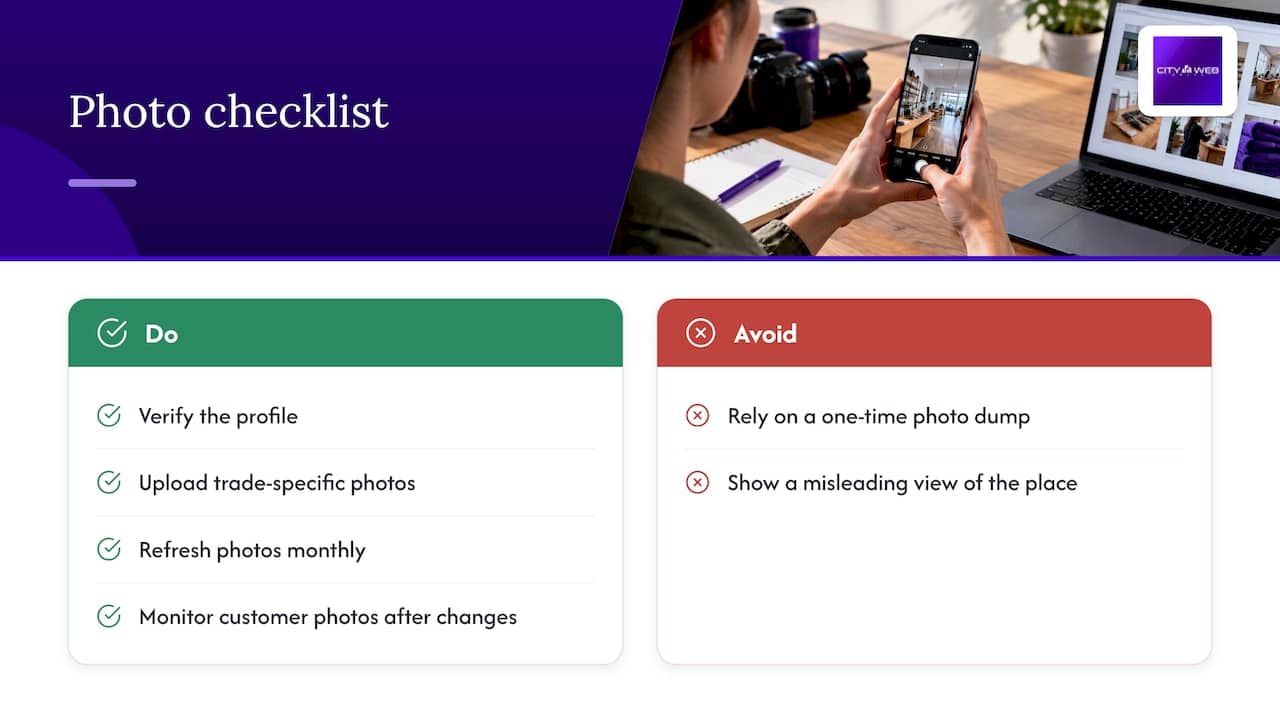
Most profiles fail from neglect, not bad photography. Our checklist: verify the profile, upload category-specific exterior, interior, and product or at-work shots, refresh monthly, and watch customer photos regularly after any big change.
What you shoot depends on the trade. A plumber should show trucks, uniforms, and repairs in progress. A med spa should lead with treatment rooms and the front desk. Both should look like the place customers will actually walk into. If you’d rather hand this off, we handle it for you.
— Matt
Need help putting this into practice?
We treat Google Business Profile optimization as part of our local SEO and business listings work. For photos, that means we help with verification, build a shot list around your services, coordinate photography, handle bulk uploads across locations, and keep images fresh over time. You get a profile that looks like your best day on the job, without carving out hours to manage it.


If you want a done-for-you setup, get started with us and we’ll walk through your profile together.
FAQ
Can I add photos to my Google Business Profile?
Yes, once your profile is verified. You can upload from Google Maps on mobile, from your Business Profile on desktop, in bulk for many locations, or through the API.
How do I change Google Business Profile photos?
Open your profile, go to the photos section, and upload new images or replace existing ones. Use JPG or PNG files of 10 KB to 5 MB. New uploads may show as pending during review.
Where can I see Google Business Profile posts?
Posts appear in the Updates and Overview tabs on mobile and in the “From the owner” section on desktop. They can include text, photos, or videos, as described in Google’s posts documentation.
Can everyone see my Google profile picture?
Photos display publicly only after your business profile is verified. Before that, uploads may stay pending and won’t appear to customers.
Sources
These articles were popular with other readers too: