

Use website DNI, connect call reports to Google Ads and your Google Business Profile, then tie calls to booked jobs. City Web Company can handle setup.
30 Second Video: Pass Google Business Verification for Local Owners
Sign in to the Google Account that manages your listing, click “Get verified,” and complete whichever method Google presents. Verification is mandatory before you can edit, post, or respond to reviews on a Business Profile, and Google auto-selects your options from video, phone/text, email, or postcard based on your business type and location.
TL;DR:
- Verification methods are determined by Google based on your business category and location, with video, phone, email, or postcard options available.
- Video verification requires filming outside, then inside your business in a single continuous take, following strict guidelines to avoid rejection.
- Non-video verification like phone, email, or postcard depends on your listed contact details being active and correctly formatted, with delays affecting timing.
- Bulk verification for multiple locations involves additional documentation and longer review times, especially for agency-managed profiles.
- Address ownership disputes require proof of authority, and unverified profiles can limit your business’s visibility in local search and maps.
Table of Contents
Table of Contents
- How Does Google Business Verification Work?
- How Do You Record a Verification Video That Gets Approved?
- What About Phone, Email, and Postcard Verification?
- Can You Verify Multiple Locations at Once?
- What If Verification Fails or Someone Else Already Claimed Your Listing?
- What Should You Do Right After Verification?
- When Should You Bring in Help for Verification?
- An Editorial Take On Why This Step Gets Skipped
- Where To Verify These Rules Yourself
- Sources
- FAQ
How Does Google Business Verification Work?
Google doesn’t let you pick your verification method. The system looks at your business category, address data, and public records, then decides which options to show. That’s why two businesses in the same city can get completely different screens.
Here’s how the common methods stack up:
- Live video call: Fast when offered, but scheduling depends on agent availability and can add days to the process.
- Recorded video: The most common method for storefronts and service-area businesses; you control the timing but must follow strict recording rules.
- Phone or text: Quick when it works. Fails often if your listed number routes through an automated system instead of a person.
- Email: Simple and nearly instant, but only available if your account already has a matching, accessible address on file.
- Postcard: Reliable but slow, and increasingly rare as Google shifts toward faster digital methods, according to BrightLocal’s coverage of verification trends.
- Bulk verification: Reserved for multi-location accounts, covered in detail below.
Pro Tip: Don’t try to force a different method by repeatedly refreshing or resubmitting requests. Google’s verification system flags unusual request patterns as potential abuse, which can delay you further or trigger a manual review, according to Google’s own guidance.
How Do You Record a Verification Video That Gets Approved?
If Google offers video verification, this is where most owners either save a week or lose one. The rules are specific, and small mistakes cause rejections.
Before you press record, confirm three things: you’re physically at the business location, you’re using the Business Profile app on a mobile device, and you’re ready to film in one continuous, unedited take. Google requires the recording to be live and at least 30 seconds long, according to its video verification guidelines.
Follow this filming order:
- Start outside. Capture the street sign, building number, or another unmistakable exterior landmark. This is the single most important shot in the entire video.
- Move to your signage. Get a close, readable shot of your business name on the door, window, or storefront sign.
- Go inside and show proof of management. Open a cash register, walk into a staff-only area, or show something only an owner or manager could access.
- For service-area or home-based businesses, show branded assets instead, like a vehicle wrap, a permit or license posted at your workspace, or a stack of invoices with your business name visible. Skip anything with customer personal data, financial account numbers, or other sensitive details.
The most common rejection reason isn’t a shaky camera. Interior-only footage with no visible street sign or building number gets kicked back even when everything else checks out.
Once you upload, Google typically reviews within five business days. If it comes back rejected, don’t panic and don’t guess. Read the specific issue flagged, fix that exact problem, and re-record from scratch rather than trying to patch an old clip.
Pro Tip: Film during daylight hours if your storefront sign is hard to read at night. Poor lighting on the exterior landmark shot is one of the easiest, most avoidable rejection causes.
What About Phone, Email, and Postcard Verification?
Each non-video method has its own failure points, and knowing them ahead of time saves a resubmission cycle.
- Phone or text: Google sends a 5-digit code to the number listed on your profile. Enter it exactly where prompted in your Business Profile dashboard. Make sure the number connects to a person, not an automated menu. Calls or texts routed through an IVR system frequently fail to deliver the code.
- Email: Only addresses already associated with your Business Profile account can receive the verification link. If nothing arrives within a few minutes, check spam folders before requesting a resend.
- Postcard: Google mails a code to your exact listed address, format matters here, so double check suite numbers and abbreviations before requesting one. Codes expire about one month after mailing, and delivery times vary by location and postal service speed.
Don’t edit your business name, address, or category while a verification code is pending. Changing profile details mid-process is a common reason codes get invalidated, forcing you to start over. If a code never arrives, wait out the standard delivery window before requesting a new one. Requesting too quickly can invalidate the original code without actually speeding anything up.
Can You Verify Multiple Locations at Once?
If you manage many locations, bulk verification may be available through Business Profile Manager to streamline the process. Google typically asks for documentation confirming ownership across the group, such as a business license or franchise agreement, and review timelines run longer than single-location video verification.
For agencies or developer teams managing verification programmatically, Google’s My Business Verifications API allows automated submission and status tracking across many profiles at once, which is worth exploring if you’re overseeing verification for a large chain rather than doing it by hand.
What If Verification Fails or Someone Else Already Claimed Your Listing?
Two different problems produce two different fixes, and mixing them up wastes time.
If your video or code gets rejected:
- Open the “Review issues” feedback in your dashboard and read the exact reason given.
- Re-record or resubmit addressing only that specific gap, don’t just try again with the same footage.
- Resubmit through the same Business Profile app flow you used originally.
If someone else has already verified your profile:
- Go through Google’s ownership request process rather than trying to create a duplicate listing.
- Provide proof you’re authorized to manage the business, such as a utility bill, business license, or tax document with a matching name and address.
- Expect this to take longer than standard verification since Google has to arbitrate between two claimants.
An unclaimed or improperly verified profile can prevent your business from showing up correctly in Search and Maps, so this isn’t a step to put off.
Pro Tip: Screenshot every error message and review note before you resubmit. If you end up needing to contact Google support directly, having a clear paper trail speeds up the conversation considerably.
What Should You Do Right After Verification?
Verification unlocks the tools that actually move the needle: editing business info, publishing posts, uploading photos, reading Insights data, and replying to reviews. None of that works while a profile sits unverified.
Once you’re in, run through this immediately:
- Confirm your hours and primary category are accurate.
- Add current photos of your storefront, team, and work.
- Verify your service area radius if you don’t operate from a fixed storefront.
- Set a monitored phone number, not a forwarding line, so you catch calls and future verification codes.
- Check back periodically for accuracy drift, especially if you have multiple managers with edit access.
A well-optimized, verified Business Profile directly affects whether you show up in local search results at all, so treat this checklist as day-one work, not a someday task.
When Should You Bring in Help for Verification?
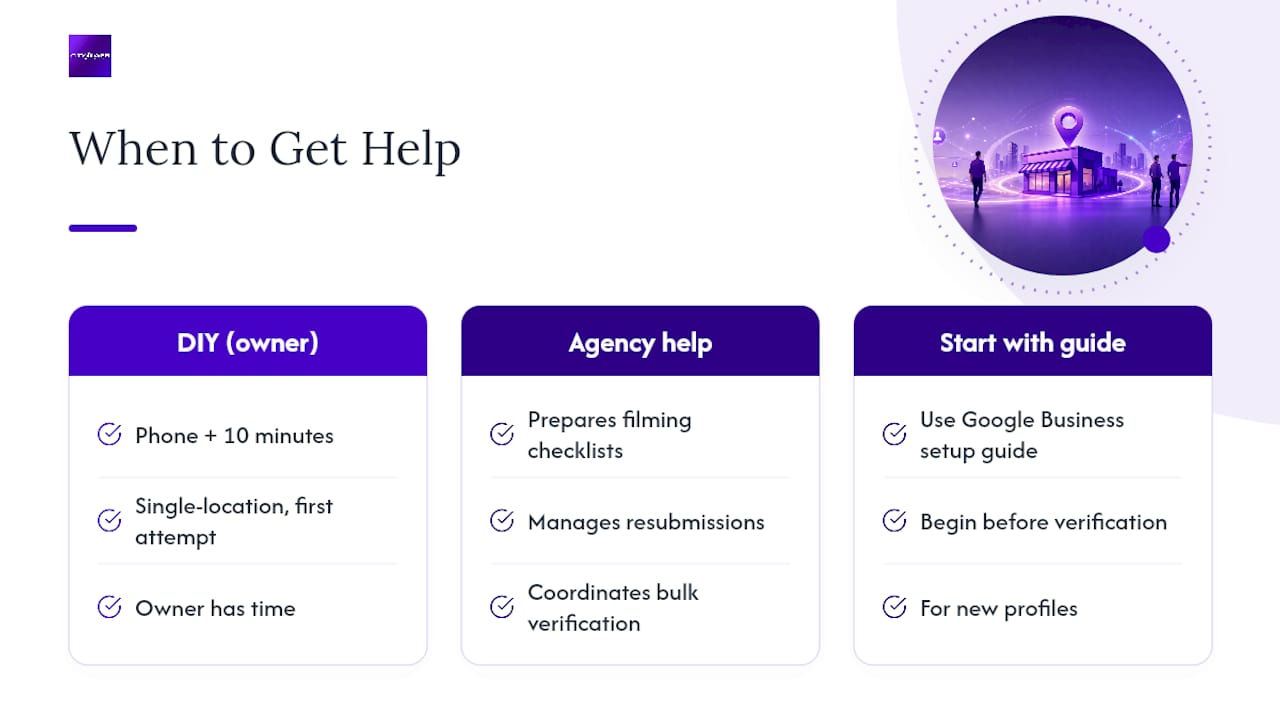
Most owners can complete this alone with a phone and ten minutes. Where it gets harder: businesses with multiple locations, listings that have already failed video verification once or twice, or owners who simply don’t have the time to sit through review cycles.
Some agencies handle the parts that eat the most hours, like preparing filming checklists, guiding on-site recording, managing resubmissions after rejection, filing ownership requests, and coordinating bulk verification for multi-location accounts. For businesses ready to go further after verification, City Web Company’s Google Business Profile optimization services cover the ongoing work of keeping a listing accurate and competitive. Owners setting up a profile from scratch can start with the Google Business Profile setup guide before tackling verification at all.
An Editorial Take On Why This Step Gets Skipped
Verification looks like paperwork, so owners put it off, then wonder why their listing barely shows up in local results. Do it the day you set up your profile, not the month after. If a rejection or an ownership dispute eats your week, City Web Company can take it off your plate.
— Matt
Where To Verify These Rules Yourself
Google’s own documentation covers general verification steps, video recording requirements, and ownership requests. Developers managing verification at scale can reference the Verifications API, and multi-location teams may also benefit from automated site monitoring tools to track listing health once verified.
FAQ
How Do I Get My Business Verified on Google?
Sign in to the Google Account tied to your Business Profile, click “Get verified,” and complete whichever method Google presents, usually video, phone/text, email, or postcard.
What Does Verifying Your Business on Google Actually Do?
Verification confirms you’re the legitimate owner or manager, which unlocks editing, posting, review replies, and Insights data, and it’s required before your listing can appear correctly in Search and Maps.
How Do I Check if My Google Business Account Is Verified?
Log into your Business Profile Manager dashboard; a verified profile shows full editing access with no “Get verified” prompt, while an unverified one displays that prompt prominently.
Is Google Business Verification Free?
Yes, Google does not charge to verify a Business Profile, though some agencies charge fees for handling the process on your behalf.
What Happens If Someone Else Already Verified My Listing?
You’ll need to file an ownership request through Google, providing proof like a business license or utility bill, since only one verified owner can manage a profile at a time.
Recommended
These articles were popular with other readers too: