

Unlock the potential of Google Ads for HVAC jobs. Learn how to create targeted campaigns that maximize leads and boost your business today!
Audit Ready Google Business Profile Categories for Local Businesses
You get one primary category and up to nine additional categories per Google Business Profile, and the single most consequential decision is picking the most specific primary category that matches your core business, not the broadest one. Practitioners who audit profiles for a living consistently favor 2 to 4 tightly chosen secondary categories over maxing out the limit. Google’s own documentation backs this: choose the closest match, never invent a category, and stay specific over generic.
TL;DR:
- Selecting the most specific primary category that accurately reflects your core business significantly impacts local search relevance and ranking, especially for the Local 3-Pack appearance.
- Most businesses should choose 2 to 4 secondary categories that represent distinct service lines, avoiding filling all available slots to prevent diluting relevance signals to Google.
- Changes to categories should be made carefully and tested over 2 to 4 weeks to measure their actual effect on visibility, call volume, and feature unlocks, with only one variable modified at a time.
- Use Google’s official tools, like the categories.list API and dashboard search, to verify available categories and avoid relying on outdated or vague third-party lists.
- Regularly review and update categories, at least quarterly, especially after service line changes or when new, more specific categories become available in Google’s evolving taxonomy.
Table of Contents
Table of Contents
- What Are Google Business Profile Categories and Why Do They Matter?
- How to Choose the Right Primary and Secondary Categories
- How to Find Competitor Business Categories and Read Them Correctly
- Where to Find the Complete Category List and Tools to Search It
- City Web Company’s Audit Checklist and Category Selection Workflow
- Category Combinations That Work Well by Industry
- How Changing Categories Affects Local SEO and Rankings
- Updating Categories Over Time: What Changes and When to Revisit
- Restrictions Google Enforces on Certain Business Types
- Why You Should Audit Your Categories on a Regular Schedule
- Sources
- FAQ
What Are Google Business Profile Categories and Why Do They Matter?
A category tells Google what your business does, not how you’d describe it in a sales pitch. “HVAC contractor” is a category. “Best HVAC company in town” is not, and Google will reject any attempt to shoehorn marketing language into the category field. The distinction matters because categories drive two separate things: whether you show up in the Local 3-Pack for a given search, and which profile features Google unlocks for you.
Every profile gets exactly one primary category, and it carries the most ranking weight of any category you select. You can then add up to nine secondary categories that describe other services or departments your business covers. That’s a hard ceiling of 1 primary plus 9 additional categories, for 10 total.
Here’s what most owners miss about how categories function behind the scenes:
- Google does not allow custom or invented categories. You must pick from its existing taxonomy, and the platform expects you to choose the closest match rather than create your own label.
- Your primary category is the single strongest signal Google uses to decide if you’re relevant for a given local search, ahead of any secondary category.
- Certain categories unlock features unrelated categories never see. Restaurants tagged correctly can display menus and ordering links, hotels can show class ratings and amenities, and health or beauty businesses can enable online booking buttons.
- Category selection has nothing to do with your business name or your website’s page titles. Google reads the category field independently.
- Some categories trigger additional verification steps, particularly in regulated fields like healthcare, legal services, and financial services.
A locksmith who only lists “Locksmith” as a secondary category, with something vague like “Home Services” as primary, is leaving ranking equity on the table. The primary category is doing most of the work, so it needs to be the most exact description of what pays the bills.
Pro Tip: If you’re not sure whether a category is “specific enough,” search for it directly in the category picker inside your Google Business Profile dashboard. If a narrower version exists (for example, “Nail salon” instead of “Beauty salon”), Google wants you to use the narrower one.
How to Choose the Right Primary and Secondary Categories
Most category mistakes happen because owners treat this like a marketing exercise instead of a classification exercise. Here’s the process City Web Company runs on every new client audit, broken into steps you can execute in about 20 minutes.
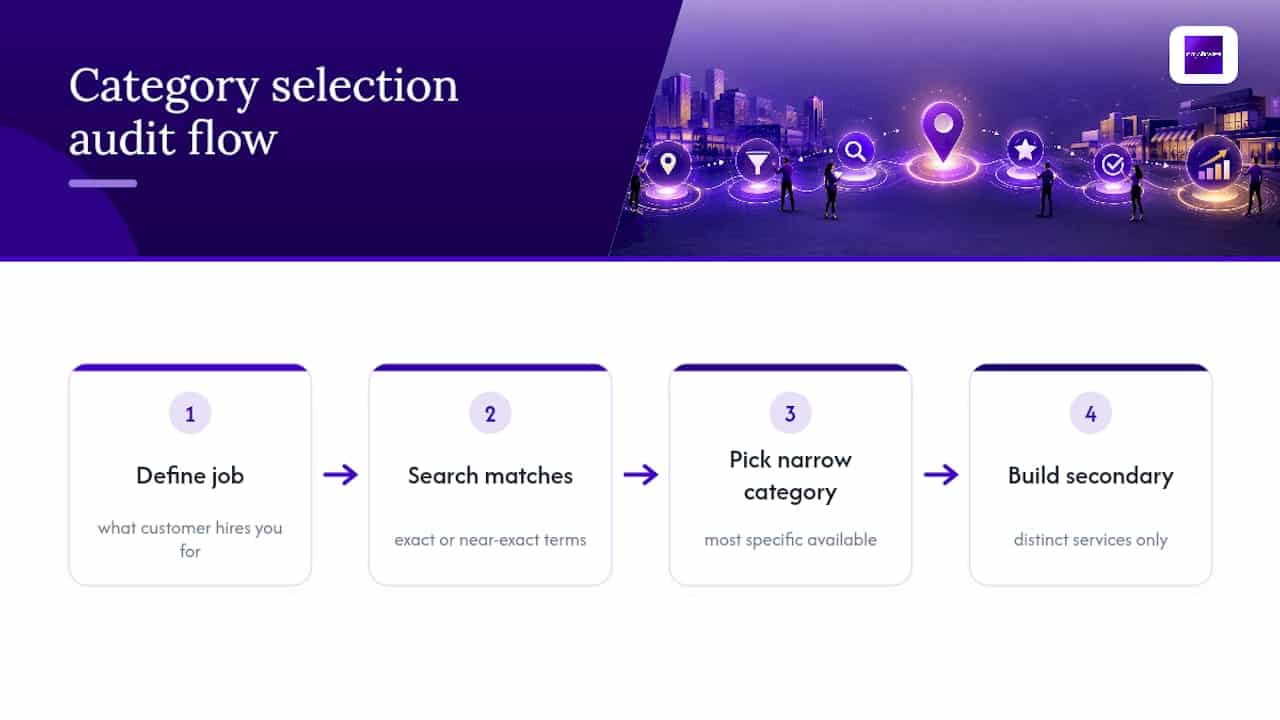
1. Define your core job before you touch the dashboard
Write one sentence describing what your business does for the customer who pays you most often. Not what you offer, what you’re hired to do. A plumbing company that does 70% emergency repair work and 30% new installation has a different core job than one running the reverse split, even though both might call themselves “plumbers.”
This sentence becomes your filter for the primary category. If your core job is “emergency pipe and drain repair,” your primary category should reflect repair and service work, not a generic “Plumber” label if a more specific option exists.
2. Search the category list for exact and near-exact matches
Open the category field in your Business Profile dashboard and type in terms tied to your core job. Google’s category search only matches the front of a category name, so typing “food” might surface “Food Court” but skip right past “Fast Food Restaurant” entirely, since the search behavior only matches the start of the category’s display name. Try multiple starting words, not just one, to avoid missing a closer match buried under different phrasing.
3. Apply the decision rule: narrow beats broad, every time
When you find two categories that both seem to fit, pick the narrower one. Google explicitly recommends selecting the most specific category available, only falling back to something broader when nothing specific exists. “Divorce lawyer” beats “Lawyer.” “Mexican restaurant” beats “Restaurant.” “Emergency plumber” beats “Plumber” if that option is available in your region and language.
4. Build your secondary category list around distinct service lines, not every service you offer
This is where most profiles go wrong. Owners see nine open slots and feel compelled to fill them. Practitioner experience across hundreds of audits points the other way: 2 to 4 well chosen secondaries tend to perform better than a maxed out list of ten, because a bloated category stack dilutes the relevance signal Google assigns to your strongest, most specific categories.
Ask yourself which additional categories represent a genuinely separate customer intent. A landscaping company might reasonably add “Lawn care service” and “Snow removal service” as secondaries if both are real revenue lines with distinct search demand. Adding “Fertilizer supplier” on top of that, just because the option exists, adds noise without adding qualified traffic.
5. Avoid the three mistakes that show up in almost every messy profile
- Product SKUs disguised as categories. A furniture store should not try to add a category for every product type it carries. Categories describe the business, not the catalog.
- Internal departments treated as customer-facing categories. “Accounting Department” or “Warehouse” are not things a customer searches for and should never appear as secondary categories.
- Category maximalism. Filling all nine secondary slots because the limit exists, rather than because each one reflects a real, searchable service line.
6. Run a short test before committing to a permanent change
Before finalizing a category swap on an established, high-traffic profile, treat it like any other ranking variable: change one thing, give it time to register, then measure.
- Record your current category configuration, including exact displayName values, as a baseline.
- Change only the primary category, or only add one secondary, never both in the same edit.
- Wait roughly 2 to 4 weeks, since Google’s local ranking systems need time to reindex the change.
- Check your Local 3-Pack visibility, call volume, and direction requests for the specific search terms tied to the new category.
- Revert the change if visibility or lead volume drops, and document what happened before trying a different category.
This kind of controlled, one-variable-at-a-time testing is exactly what separates a strategic profile from one that gets tinkered with randomly every few months. If you’d rather have someone run this process for you, City Web Company’s Google Business Profile optimization service handles the audit, testing, and measurement end to end.
How to Find Competitor Business Categories and Read Them Correctly
Competitor categories are public information, and reading them correctly tells you more about your local market than almost any other free research you can do in an afternoon.
Start with the most direct method: open a competitor’s Google Maps listing and look just below their business name. Google displays the primary category right there, though secondary categories are less visible on the public-facing listing and require a bit more digging through the profile’s “About” section or structured data.
A few places to check, in order of reliability:
- The competitor’s live Google Maps or Search listing, which shows the primary category displayed publicly under the business name.
- Your own Google Business Profile dashboard’s category picker, useful for confirming whether a category you spotted on a competitor even exists as a selectable option in your region.
- The categories.list API endpoint, which developers can query directly to pull the full, current category list with regionCode and languageCode parameters, useful when you want to confirm a category’s exact spelling or check what’s newly available.
- Vetted third-party category trackers, which mirror the API output for people who don’t want to build a query themselves, though these should be treated as a convenience layer, not a replacement for the official source.
Here’s what a competitor’s category stack actually signals. If three plumbing companies in your market all list only “Plumber” as primary, and a fourth lists “Drain cleaning service” as primary with “Plumber” as secondary, that fourth business is either capturing a specific search intent the others ignore, or it made a mistake that happens to be working. You won’t know which without checking if their profile shows features yours doesn’t, like a booking button or a specific service menu.
The instinct to copy a competitor’s exact category combination is understandable and usually wrong. Their core job might differ from yours even within the same broad industry, and a category that fits their business perfectly could be the wrong specificity level for yours. Use competitor research to generate candidates, then run each candidate through your own core-job filter from the previous section before adding it. Change one category at a time and measure the effect, the same discipline that applies to your own profile.
Where to Find the Complete Category List and Tools to Search It
The full Google Business Profile category list lives in two official places, plus a layer of third-party tools that make searching and exporting easier for people who don’t want to write API calls by hand.
The official dashboard selector
Inside your Google Business Profile dashboard, the category field is a live search box connected to Google’s current taxonomy. Type a term and it returns matching categories in real time. This is the fastest option for a single business checking or changing its own category, and it’s the only place where you actually apply a category change to a live profile.
The limitation: the dashboard doesn’t let you browse the entire list at once, export it, or filter by things like which categories support booking or menu features. For that, you need the second official source.
The categories.list API endpoint
Google’s Business Profile API exposes a categories.list method that developers and agencies use to pull the complete, current category set programmatically. The endpoint accepts several parameters that control what comes back:
- regionCode: restricts results to categories available in a specific country, since not every category exists in every region.
- languageCode: returns category names in the requested language, important for multi-language profiles.
- filter: lets you search by term, though it’s worth knowing this only matches the beginning of a category’s display name, not anywhere within it.
- pageSize and pageToken: handle pagination, since the full list runs into the thousands of categories and won’t return in a single call.
- view: controls how much detail comes back per category, including whether service types are included.
Each category object returned by the API includes a displayName (the human-readable label) and a categoryId (a stable internal identifier). Some categories also return serviceTypes and moreHoursTypes arrays, which is how Google signals that a given category supports additional structured fields like specific service listings or extended hours formats.
That categoryId matters more than most people realize. Google can rename or relocalize a displayName over time, but the categoryId stays fixed, which makes it the only reliable key for bulk updates across dozens or hundreds of locations. Any agency managing multi-location clients through the API should be capturing categoryId, not just the display name, in every audit record.
Front-of-name matching: the search quirk that trips people up
Because the API’s filter parameter only matches the start of a category name, a search for “repair” will miss “Appliance repair service” entirely, since the match requires “repair” to appear at the front of the string, not somewhere in the middle. The practical fix is to search using the noun you expect to start the category name (try “appliance,” not “repair”) and to run multiple search terms rather than assuming one query captured everything relevant.
Third-party lists and tools
A handful of third-party sites maintain regularly updated exports of the full Google Business Profile category list, formatted as searchable spreadsheets or filterable web pages. These are useful when you want a quick browse across the entire taxonomy without writing an API call, particularly for spotting categories you didn’t know existed. Treat them as a discovery layer. For anything you’re about to commit to a live profile, or any bulk update across multiple locations, confirm the category still exists and still carries the same categoryId by checking the dashboard or the official API directly, since third-party mirrors can lag behind Google’s own updates.
A practical audit workflow for recording categories
When City Web Company audits a client’s profile, or a batch of locations for a multi-site business, the workflow captures a consistent set of fields per location so nothing gets lost between the audit and the actual update:
| Field to record | Why it matters |
|---|---|
| Current primary category (displayName) | Baseline for comparison before any change |
| Current primary category (categoryId) | Stable reference that survives renaming or relocalization |
| Current secondary categories (all, with displayName) | Full picture of existing category footprint |
| Candidate primary category | The specific match identified through the audit process |
| Candidate secondary categories (2 to 4 max) | Distinct service lines worth adding |
| Category-linked features available (booking, menu, service list) | Confirms what’s unlocked if the change goes through |
| Date of last category change | Needed to track how long to wait before measuring results |
This table only works because every field is something you can actually pull from the dashboard or the API for every location you manage. Skip the ones you can’t fill in confidently rather than guessing.
If your business runs more than a handful of locations, this kind of structured export becomes essential rather than optional, since manual dashboard checks don’t scale past a few profiles. City Web Company’s Local SEO services for small businesses page covers how this audit process fits into a broader visibility strategy if you’re managing this alongside other local ranking factors.
City Web Company’s Audit Checklist and Category Selection Workflow
Every category audit City Web Company runs starts with the same template, regardless of industry: define the core job, list every real service line, map each one to a candidate category, then check which profile features each candidate unlocks.
The checklist looks like this in practice:
- Write the one-sentence core job statement, based on actual revenue mix, not aspirational service offerings.
- List every genuinely distinct service line the business sells, separating “distinct” from “just a product variation.”
- Map the core job to the most specific available primary category, verified against the live dashboard search.
- Select 2 to 4 secondary categories, one per distinct service line, skipping anything that’s really just a product SKU.
- Check whether the resulting category combination unlocks features like booking buttons, menus, or service lists, and confirm those features are actually configured, not just theoretically available.
Pro Tip: After any category change, check your profile’s “Business Information” tab within 48 hours to confirm the edit saved correctly. Google occasionally reverts a change if it flags the new category as a mismatch during automated review.
After a change goes live, the metrics worth tracking are Local 3-Pack appearance rate for target search terms, direction requests, and call clicks, measured over a 3 to 4 week window to give Google’s index time to catch up. In one representative case, a home services client whose profile had listed only a generic primary category swapped to a more specific service category and gained eligibility for a booking button that hadn’t been available before, a feature unlock tied directly to the category change rather than any other profile edit. Results like this are category-dependent and won’t apply to every business, but the pattern of “specific category unlocks a specific feature” holds consistently across service industries.
Category Combinations That Work Well by Industry
The strongest category stacks share a pattern: one specific primary category tied to the dominant revenue line, followed by secondaries that cover genuinely separate service lines rather than variations on the same service.


A plumbing company doing mostly emergency work might run “Emergency plumbing service” or a similarly specific plumbing category as primary, with “Water heater installation service” and “Drain cleaning service” as secondaries, skipping generic add ons like “Plumber” if a more specific option already covers that ground.
A pest control company often does well with “Pest control service” as primary, then “Termite control service” and “Wildlife control service” as secondaries if those are real, separately marketed offerings.
A med spa frequently benefits from a specific primary like “Medical spa” paired with secondaries such as “Skin care clinic” or “Facial spa,” since these categories tend to unlock the booking features that matter most for appointment-driven businesses.
An HVAC company running both installation and repair work might use “HVAC contractor” as primary with “Air conditioning repair service” and “Furnace repair service” as secondaries, reflecting the two service lines that actually drive separate search demand.
The common thread: every secondary earns its slot by representing a service someone would search for independently, not by existing simply because a slot was open.
How Changing Categories Affects Local SEO and Rankings
Swapping your primary category is one of the highest-leverage single edits you can make to a Google Business Profile, and also one of the riskiest if done carelessly. Because the primary category carries the strongest relevance signal in Google’s local ranking system, changing it can shift which searches you appear for almost immediately, sometimes within days, though full reindexing typically takes a few weeks.
The upside: a business that’s been miscategorized under a broad label can see meaningful Local 3-Pack gains after switching to the specific category that actually matches customer search behavior. The downside: switching away from a category you’ve ranked well under, even to a “more accurate” one, can cause a temporary or lasting drop if the new category has less established relevance for the keyword phrases driving your current traffic.
This is why the testing protocol from the how-to section matters so much. Change one category at a time, document the baseline, and give it enough time to register before drawing conclusions. Businesses that change categories repeatedly within short windows, chasing quick wins, tend to see noisier and less interpretable results than those that make a deliberate change and measure it properly. If you’re weighing a category change against a broader ranking strategy question, City Web Company’s breakdown of local SEO versus traditional SEO approaches covers how category signals fit into the larger local ranking picture.
Updating Categories Over Time: What Changes and When to Revisit
Categories aren’t a set-it-once field. Google periodically adds, splits, and retires categories as its taxonomy evolves, which means a category that didn’t exist two years ago might now be the exact match your business has been missing.
Update your categories whenever your service mix changes materially, such as adding a new revenue line or dropping one you no longer offer. A landscaping company that adds snow removal for the winter season, for example, has a legitimate reason to add a secondary category it didn’t need before.
Beyond service changes, revisit your category selection on a recurring schedule, since Google’s taxonomy itself shifts independently of anything happening in your business. A category you settled for two years ago as “close enough” might have a genuinely exact match available today that didn’t exist back then.
When you do make an edit, expect a short adjustment window before results stabilize, generally a few weeks, during which Google’s systems reassess your relevance for various search terms. Some category-linked features, like a newly unlocked booking button, tend to appear faster than ranking shifts do. Always record the date of any category change alongside your baseline metrics, so you can tell whether a later traffic shift is actually related to the category edit or to something else entirely, like a seasonal demand swing or a competitor’s own profile change.
Restrictions Google Enforces on Certain Business Types
Not every business gets an open run through the category list. Google applies extra scrutiny and, in some cases, hard restrictions to categories tied to regulated or sensitive industries.
Healthcare related categories, including many medical and dental practices, often trigger additional verification steps beyond the standard postcard or video verification most businesses go through. Legal services categories can carry similar scrutiny, particularly for solo practitioners without an established firm history.
Google also restricts certain categories from being paired together in ways that would misrepresent the business, and it actively polices businesses that select a category clearly unrelated to their actual operations, a practice sometimes called category spamming, which can result in a suspended or unpublished profile.
Financial services categories, home based businesses without a public-facing storefront, and businesses operating from residential addresses all face their own specific rules about what information can display alongside the category and whether the address itself can be shown publicly. If your business falls into any of these more heavily regulated categories, it’s worth reading Google’s category management guidance directly before making a change, since the standard “pick the most specific option” rule sometimes comes with an added verification step attached for these business types specifically.
Why You Should Audit Your Categories on a Regular Schedule
I’d treat category review as a quarterly task, not a one time setup step, and I’d add an extra check any time your service lineup changes. Google’s taxonomy doesn’t sit still. New categories get added, old ones get split into more specific versions, and a business that picked the closest available match three years ago might be sitting on a meaningfully better option today without knowing it.
The businesses that benefit most from this kind of recurring check tend to be the ones that treat categories as a static, “set it and forget it” field. That’s the exact mindset that leaves feature unlocks like booking buttons or service menus sitting unclaimed for years. A quarterly ten minute check against the current category list costs almost nothing and occasionally surfaces a genuinely better primary category match. Tie that habit into your broader local ranking work, since category accuracy is one input among several, not a replacement for the rest of your local SEO effort.
— Matt
Sources
Bookmark these before your next audit. Google’s category management help page covers the official rules on primary and secondary categories. The categories.list API documentation explains how to query the full list programmatically. For agencies managing multiple clients, a broader look at digital marketing agency options offers useful context on how different agencies approach local visibility work.
If you’d rather have a specialist run the full category audit and testing process on your profile, City Web Company’s Google Business Profile optimization service handles the entire workflow described above, from initial audit through measured category changes, so you don’t have to manage the API calls or the testing schedule yourself.
- Manage your business category – Google Business Profile Help
- Method: categories.list | Google Business Profile APIs | Google for Developers
FAQ
How Many Categories Can a Google Business Profile Have?
One primary category plus up to nine additional categories, for 10 total. Most practitioners recommend using only 2 to 4 secondaries rather than filling every slot.
What’s the Difference Between a Primary and Secondary Category?
The primary category is your single strongest ranking signal and should match your core business function exactly. Secondary categories describe additional, genuinely distinct service lines and carry less ranking weight individually.
Can I Create a Custom Category if None of Google’s Options Fit?
No. Google does not allow custom categories and requires you to select the closest available match from its existing list, falling back to a broader category only when nothing specific exists.
Will Changing My Primary Category Hurt My Rankings?
It can, temporarily, since Google needs time to reassess relevance under the new category, typically a few weeks. That’s why testing one change at a time and measuring before making further edits matters so much.
Where Can I See the Full List of Google Business Profile Categories?
The dashboard’s category search shows matches in real time but won’t display the entire list at once. Developers can pull the complete, current set through the categories.list API endpoint, or use a reputable third-party export for a quick browse.
Recommended
These articles were popular with other readers too: